
How Stow works
Stow downloads everything, keeps it encrypted on your Mac, and then helps you decide what to keep. Your mailbox is never changed.
1. Add an account
Stow works with Gmail and Google Workspace, Microsoft 365 and Outlook.com. You sign in in your web browser, on Google's or Microsoft's own page. Stow never sees or stores your password.
Before that, Stow asks where to keep your archive. This Mac is the default; you can also choose an external disk.
Why the permission screen looks alarming
Google will ask you to allow Stow to "read, compose, send and permanently delete" your email. That is Google's standard wording for the only permission that lets apps like Stow (and Apple Mail) download your mail over IMAP. Stow only reads. It has no code that sends, changes or deletes anything in your mailbox.
Microsoft asks for IMAP access to your mailbox in the same way. For a work or school account, your organisation's administrator may need to approve Stow first.
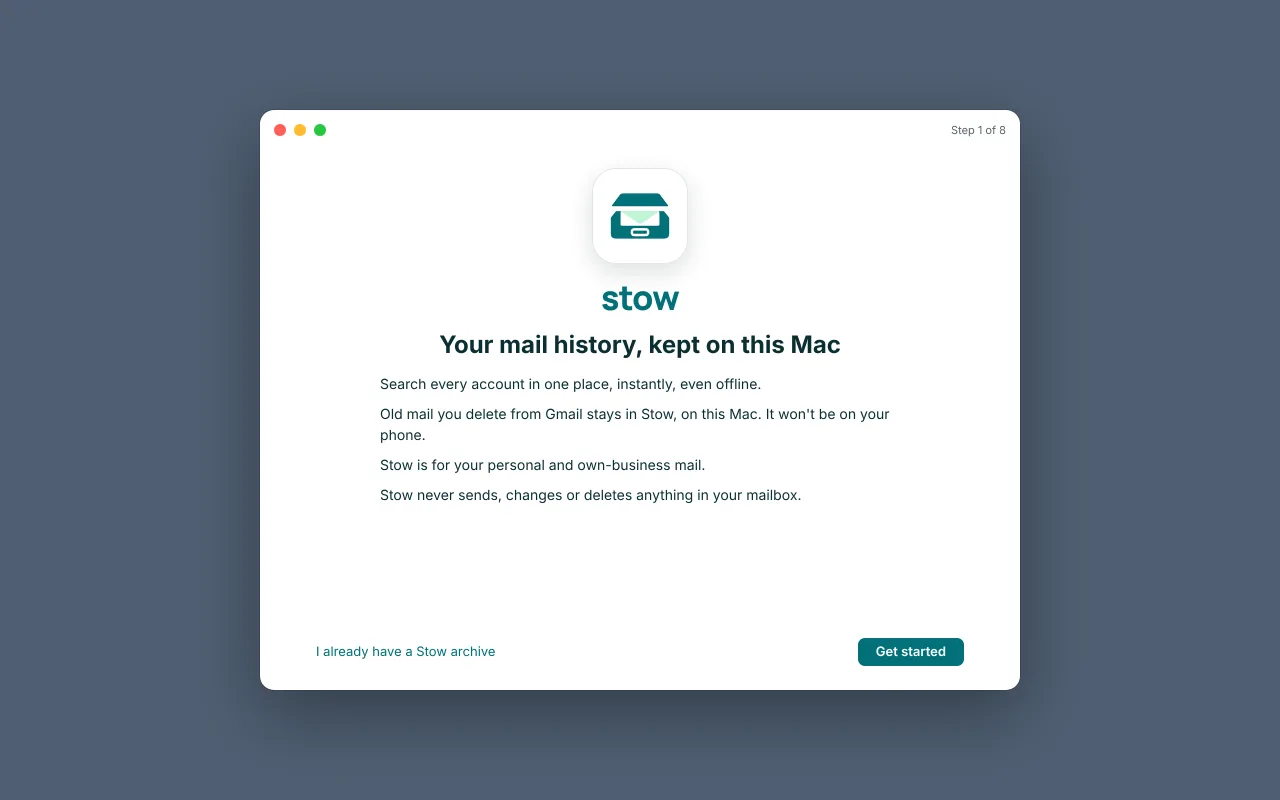
2. Save your recovery key
Everything Stow saves is encrypted. The keys stay in your Mac's Keychain and never leave it, not even to iCloud.
Before Stow downloads anything, it shows you a recovery key once: 56 characters in 14 groups of four. If your Mac is lost, replaced or reset, the recovery key is the only way to open your archive, including from a Time Machine backup. Save it in your password manager or print it, then type two groups back so Stow knows you have it. Anyone with this key and a copy of your archive could read your mail, so treat it like a password.
We never receive your recovery key, so we cannot recover your mail for you.
3. The first download
Stow downloads every email in full, with attachments. Personal mail comes first and newsletters last, and new mail goes ahead of the backlog, so what matters is searchable early.
A large mailbox can take a few days. Gmail limits how much an app may download each day, and Stow stays within that limit. Stow works in the background at low priority, even with its window closed, and picks up where it left off. Keep your Mac on and connected. It pauses when the battery is low or Low Power Mode is on, and carries on by itself afterwards.
Each email is checked byte for byte when it is saved. The account overview shows how far the download has got and, once it is complete, the date up to which everything is safely stowed.

4. Search
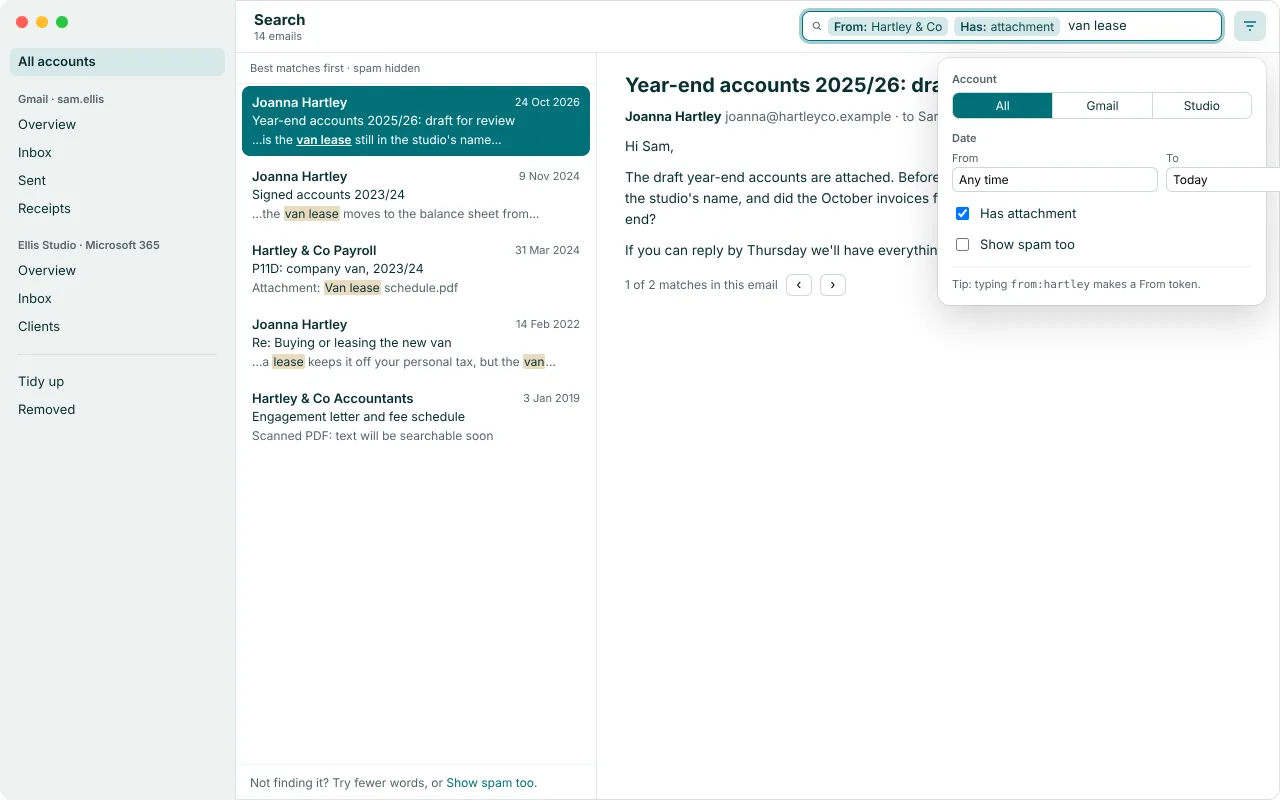
Search every account at once, on your Mac, even offline. Stow searches senders, recipients, subjects, message text, attachment names and the text inside PDFs and Word documents. Text in scanned documents is recognised on your Mac, in the background, and becomes searchable a little later.
Narrow a search by sender, account, date or whether an email has attachments. Mail you marked as spam stays out of results unless you ask for it.
Images from the internet in old emails are not loaded unless you ask, one email at a time, so opening an old email tells the sender nothing.
5. Tidy up
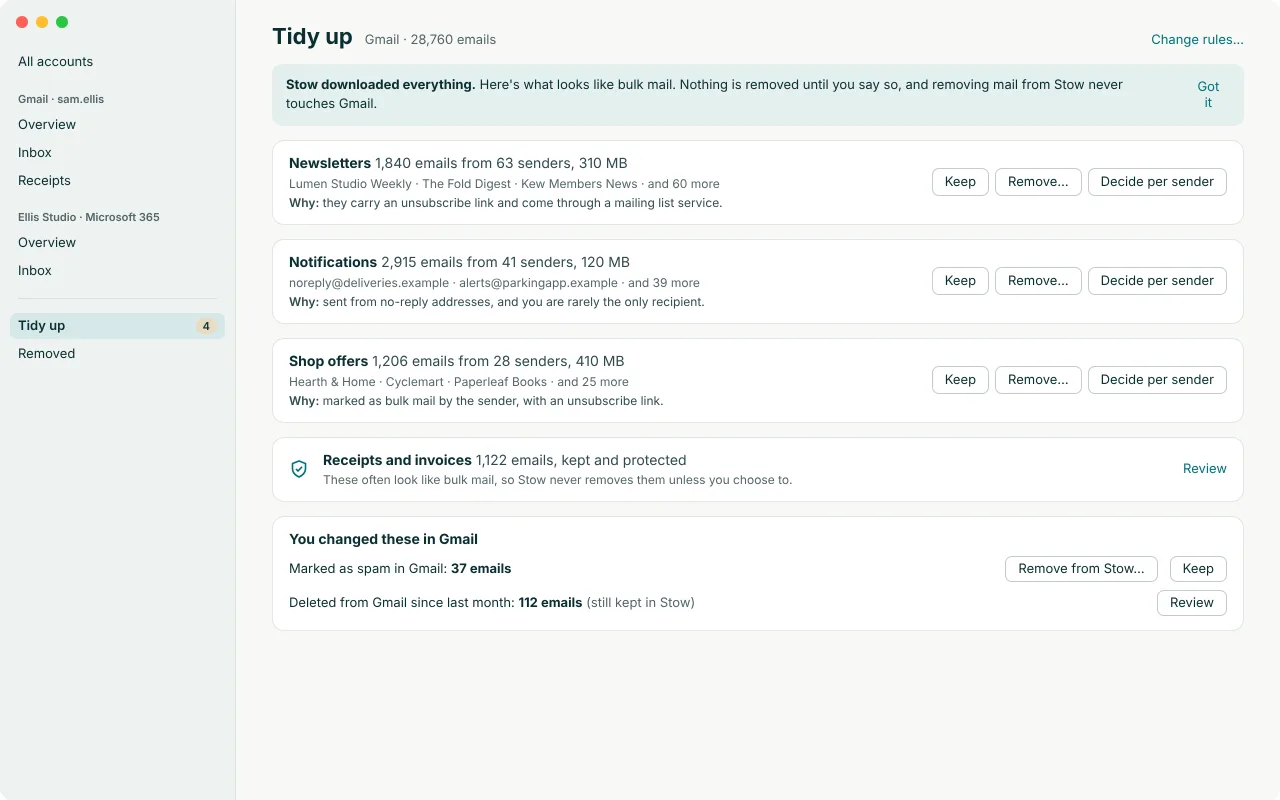
Stow downloads everything first, then shows you what looks like bulk mail, in groups with counts, sizes, sample senders and the reason for each group. Nothing is removed until you say so. You can keep or remove a whole group, or decide sender by sender.
Receipts and invoices often look like bulk mail, so Stow keeps them and never removes them unless you choose to.
Removing mail from Stow never touches your mailbox. Removed mail can be put back while your mailbox still has it. If you later delete old mail from your mailbox, mail you removed from Stow is then gone for good, and Stow says so before you confirm.
6. Free up space on the server
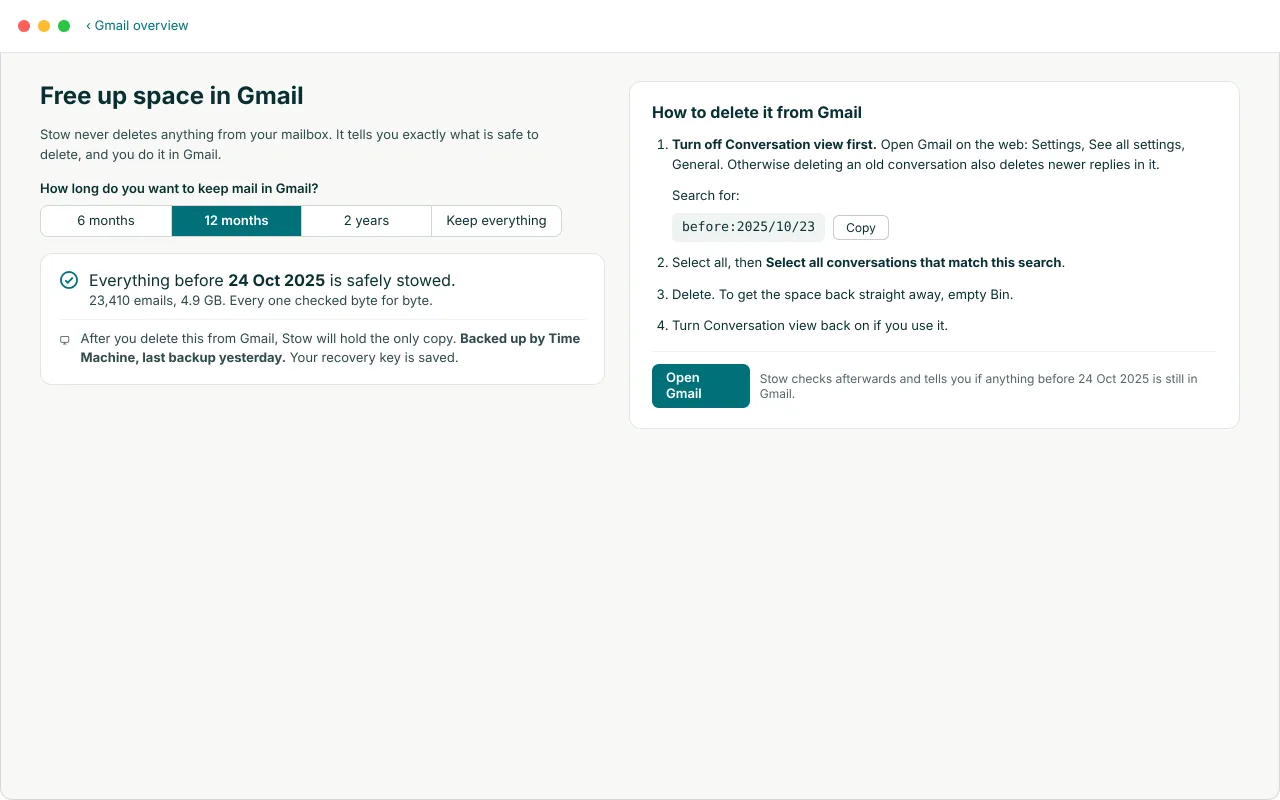
Stow never deletes anything from your mailbox. Instead, for each account, you choose how long to keep mail on the server, for example 12 months. Stow shows the coverage date: everything before it is archived and checked. Once the coverage date reaches your cut-off, Stow gives you step-by-step instructions for deleting older mail yourself, written for Gmail, Google Workspace, Microsoft 365 or Outlook.com.
For Gmail, the first step is to turn off Conversation view, because otherwise deleting an old conversation also deletes newer replies in it.
After you delete old mail from your mailbox, Stow holds the only copy, so Stow reminds you to back up your Mac and keep your recovery key. If anything that your deletion would reach is not archived yet, for example because your Mac was off, Stow warns you well before.
Stow never deletes from your mailbox
Stow can send only read-only commands to the mail server. It opens folders read-only and fetches messages in a way that does not even mark them as read. Nothing in Stow can send, change, move, label, flag or delete anything in your mailbox, so a mistake in Stow cannot cost you mail.